Prove what was sealed, where it is, and who fitted it.
A seal above a ceiling is invisible the day after it is fitted. MyQTAG gives every penetration a record — the product, the position on the floor plan, the photos and the person — captured on the phone with no signal, and handed over as a report anyone can open.
The problem
Sound familiar?
The seal disappears behind the ceiling
Six months on, nobody can say which penetration was sealed, with what, or whether it was ever revisited.
The survey and the install live in two places
What was found sits in one spreadsheet and what was fitted in another, and nothing joins either to a position in the building.
No signal in the riser
Service voids, plant rooms and stairwells are exactly where passive fire lives, and exactly where a connected app stops.
Surveys
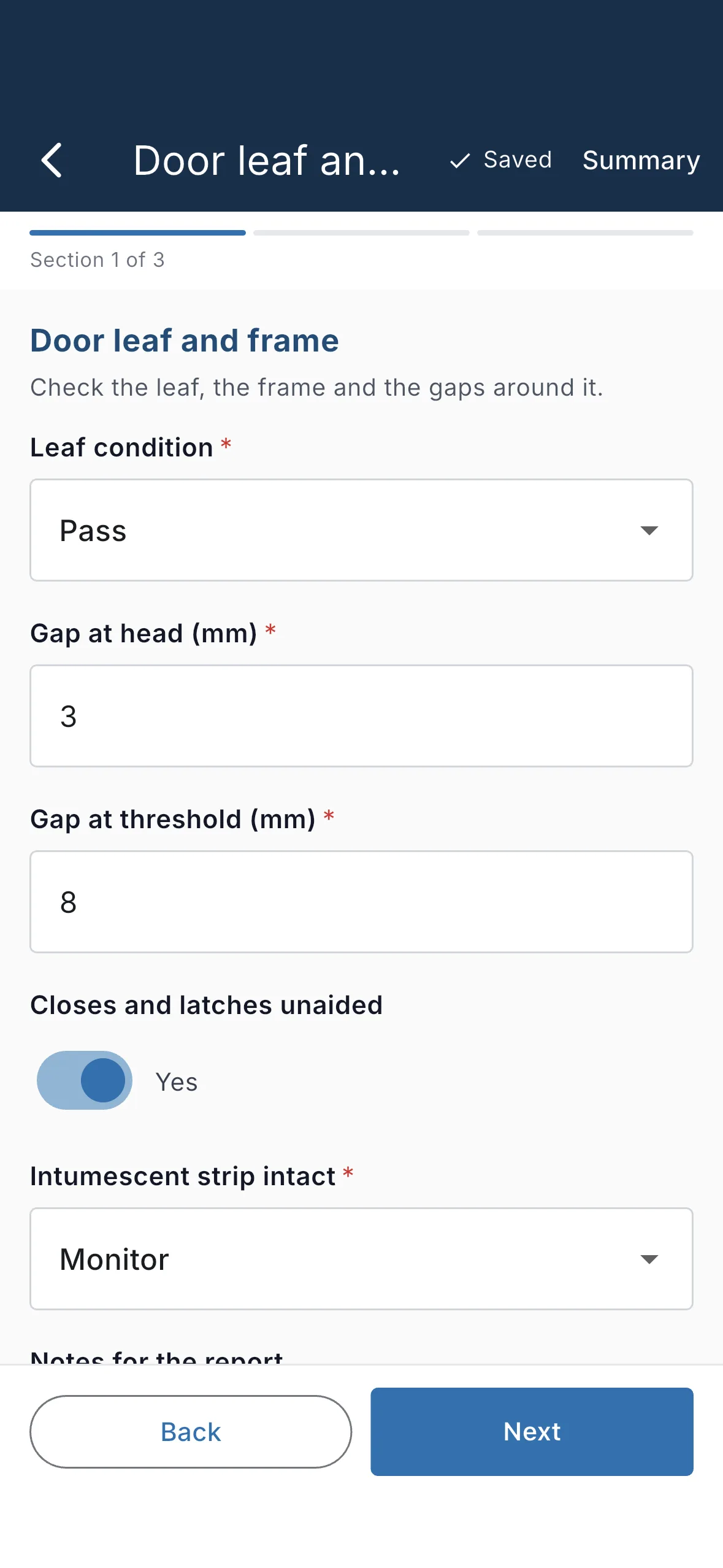
Survey the compartment line, penetration by penetration
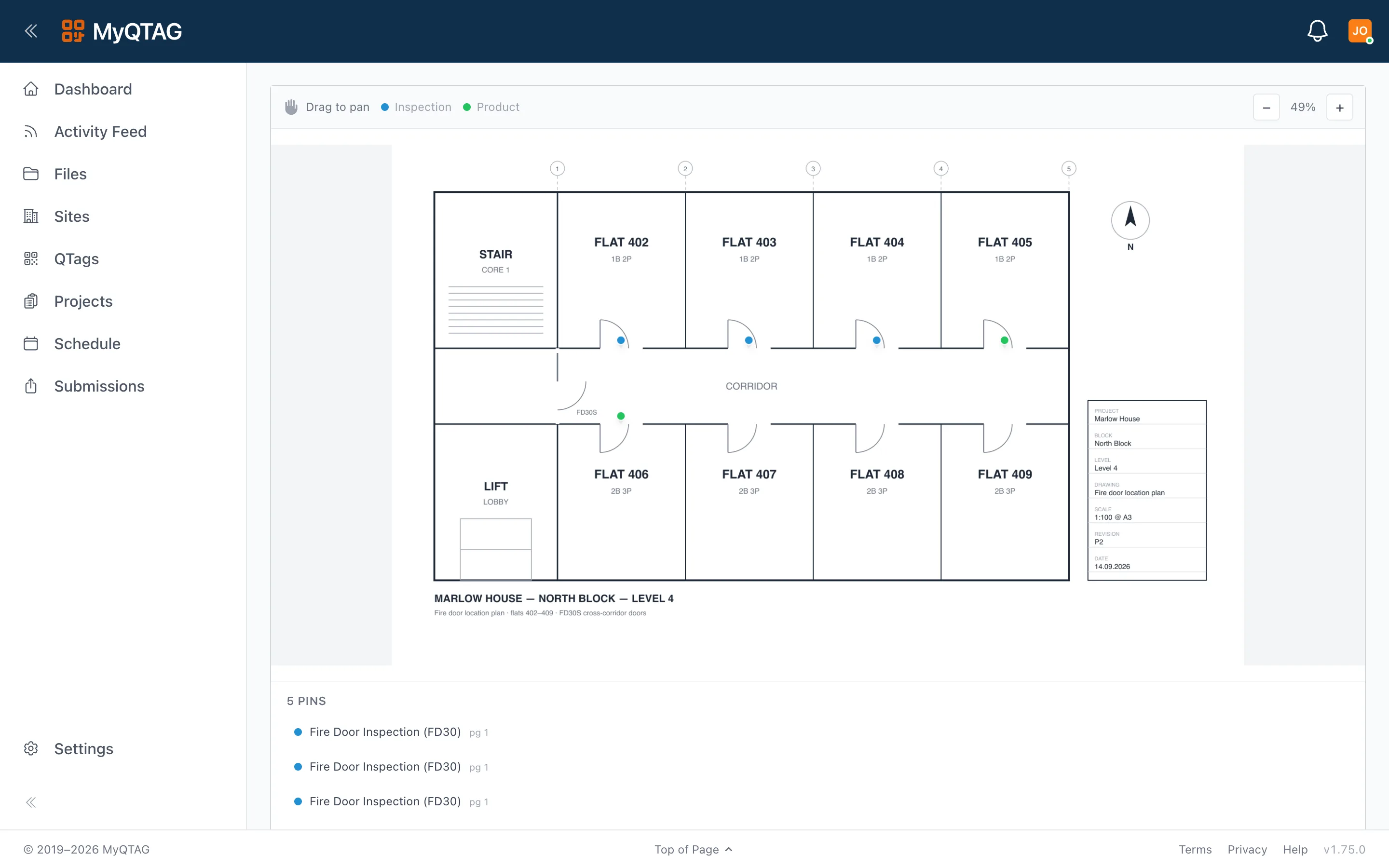
Walk the floor with your own survey form and record each penetration where it actually is. Drop a pin on the floor plan and the position is kept as a point on that page of that floor's drawing — so the next person finds it from the plan rather than from a description.
- Your form template, not ours — text, numbers, dates, ratings, photos and signatures
- Site, block, floor and location on the record, so a seal has an address rather than a description
- Pin the record to the floor plan, on the page of the drawing that floor owns
- Captured offline and uploaded on its own once there is signal again
Installs
An install record that says what you actually fitted
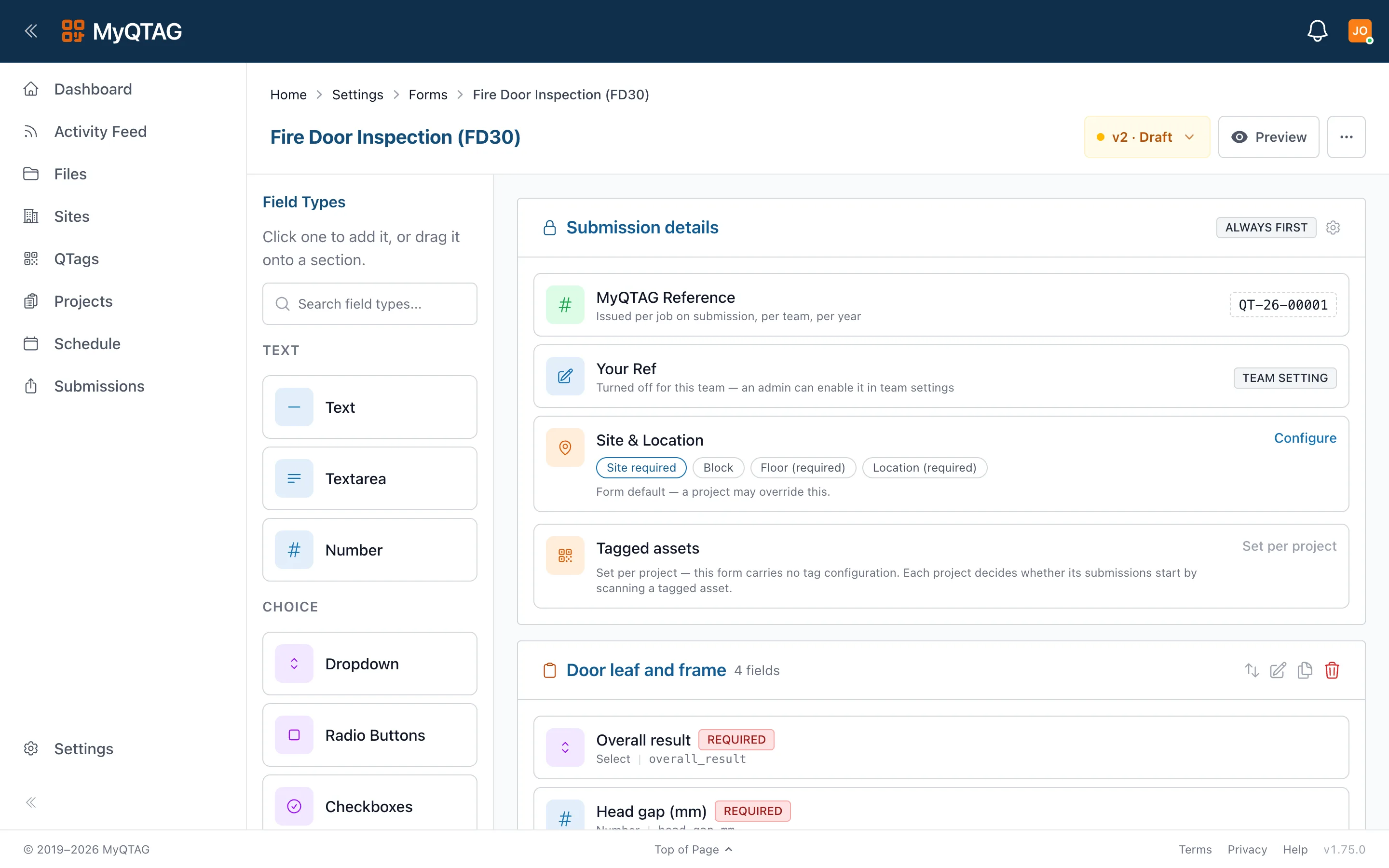
Record the product against the penetration it seals. The product type carries its manufacturer and SKU; the installed record carries who fitted it and when; and any field you need beyond that is one you add to the product type yourself.
- Manufacturer and SKU held on the product type, once, for every install of it
- Who fitted it and when, captured on the record rather than remembered
- Your own fields per product type — aperture size, depth, certificate reference, whatever you must evidence
- Photos on the record, so the evidence and the detail are one document
Tags
Give the seal a label, and the label a history
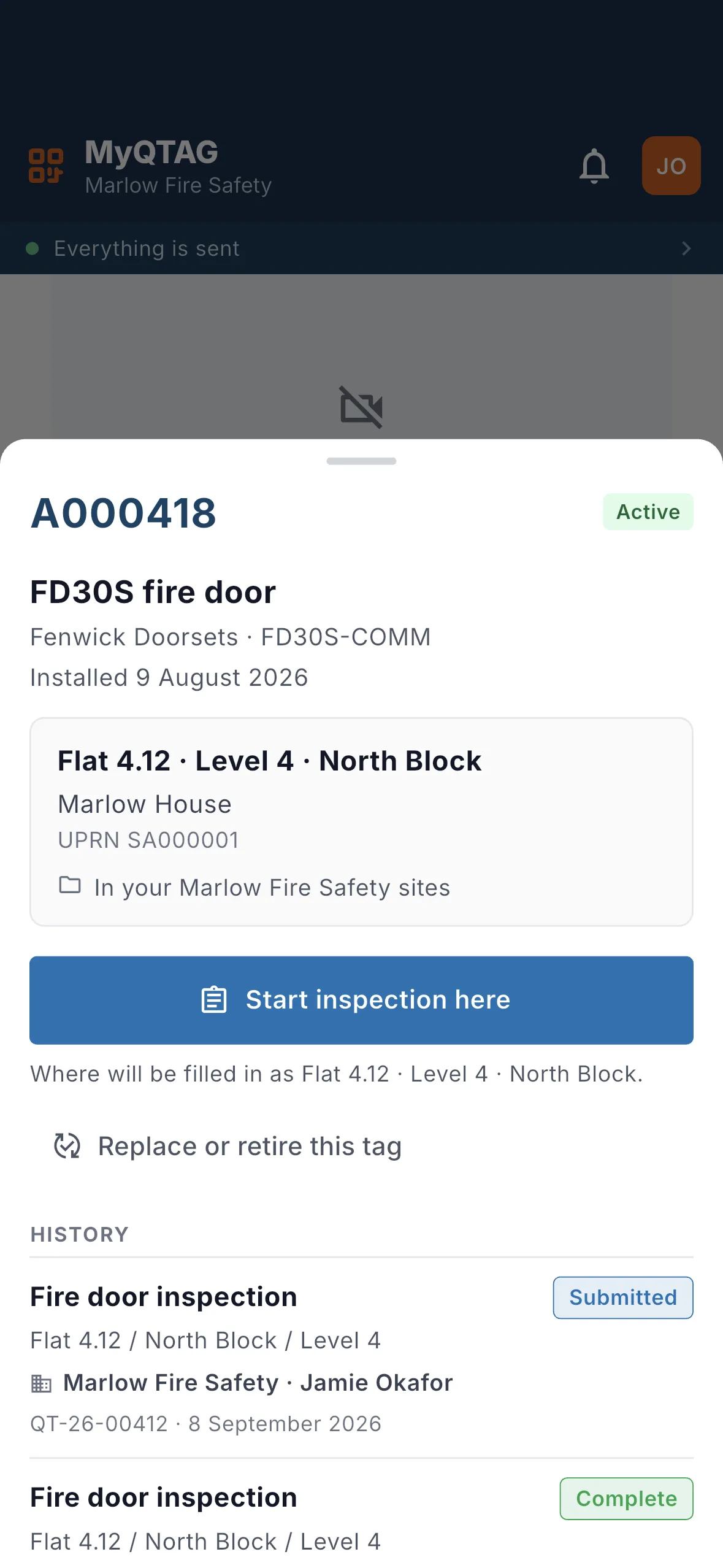
Fix a QTAG to the penetration and every later visit adds to the same record instead of starting a new one. Scan it with the phone's own camera and the asset opens — what was fitted, when it was last checked, and what that visit found.
- One durable QR tag per asset, ordered in the platform
- A scuffed label is replaced without losing the record behind it
- Later inspections stack up on the asset — none overwrites the last
Remedials
Failures become work, and the work closes out on the record
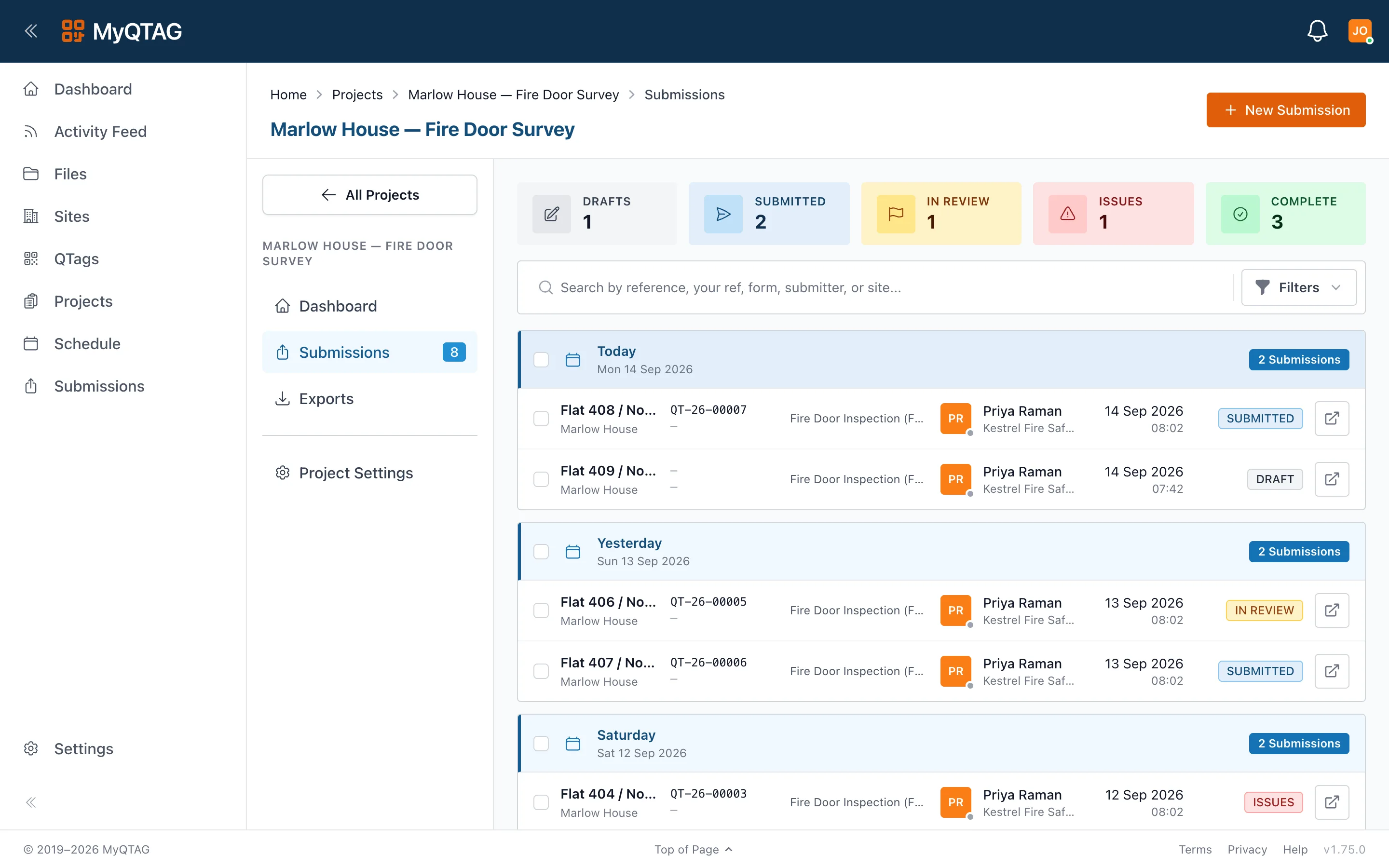
A submission that fails review goes to Issues rather than into somebody's inbox. Reworked, it comes back through review and finishes as complete — and the evidence of the fix sits on the same asset as the evidence of the fault.
- Five states, one lifecycle: draft, submitted, in review, issues, complete
- Name your own sub-states inside review and issues — "contractor notified", "awaiting sign-off"
- Rework returns to draft and comes back through the same review
- Every submission is kept, so the fault and the fix both stay on the asset
Evidence
The report your client asks for, without writing it
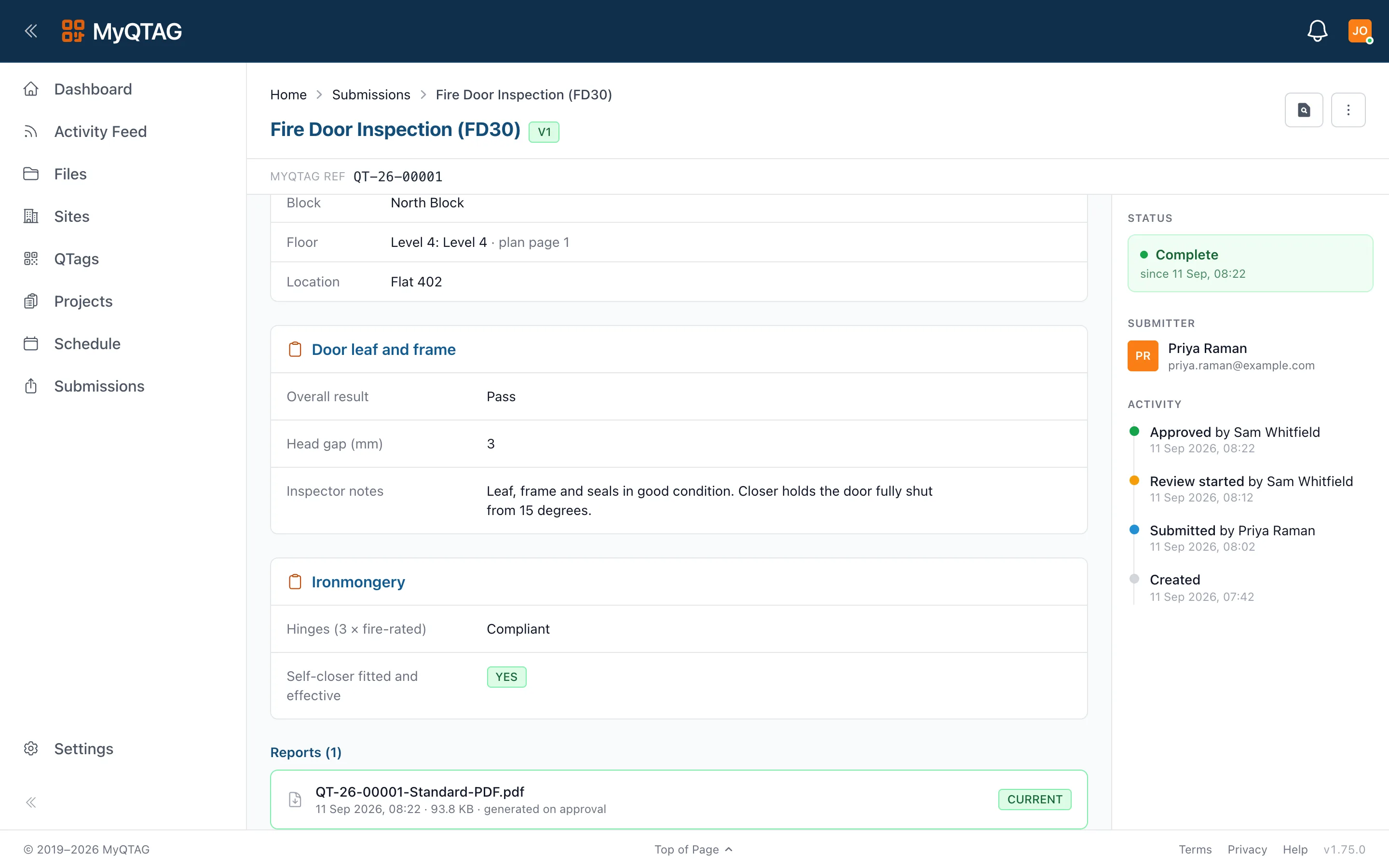
Approve a submission and the branded PDF is generated in your client's colours, with the floor-plan callout showing where the seal is. It is filed against the project, and your client can open it in their own account rather than waiting on an email.
- Per-client report branding, chosen per project
- Export templates and file naming you configure once
- Share links you can revoke, with a record of who opened what
- Connect the client to the project and they see approved work only
Who it's for
The same record, read from both ends
Contractors
You seal it and evidence it
Survey the compartment line, record what you fitted where, and hand the client a report with the position on the drawing — all captured in the riser with no signal.
See the contractor workflow
Building managers
You have to prove it was done
Every penetration on its own tag, with the product, the installer and the photos behind it — and a history that survives a change of contractor.
See it from the estate side